
Watch the webinar
Video transkript
0:01
Konstantin: Hello and welcome to today's webinar “Discover a New Generation of Digital Microscope - the Emspira 3”. My name is Kostantin Kartaschew. I am Advanced Worklow Manager at Leica Microsystem and I will be your host today. Our speaker is my colleague Michael Doppler. He is Advanced Workflow Specialist also at Leica Microsystems. You will hear of him shortly, but first I'd like to welcome and introduce you to our webinar platform which is fully browser based. So if you find yourself disconnecting at any time please click the link you received by email to immediately rejoin the webinar session.
All of the icons along the bottom of your screen are interactive widgets. You can ask questions using the Q&A widget or by using the questions box. We will try to get through as many questions as we can once the presentation has concluded. Please use the help widget, if you do experience any technical problems or require any assistance. You can also move, resize, or maximize any of the icons on your screen to get a better view of the slides, if you need it. And now I'd like to directly hand over to Michael.
1:24
Michael: Thank you Konstantin and welcome everybody to our webinar for “Emspira 3 - Inspiring Simple Inspection”!
What you're going to see is first an overview of Emspira features and properties and then I will switch over to the standalone version, which will be today's topic.
We are today talking of Empira 3 in a complete standalone version. You only have to connect it to a screen. But we will come to this. So Emspira 3 digital microscope combines everything needed to perform comprehensive visual inspection in a single system, including comparison measurement and the sharing of the documentation.
It is typically built for industrial applications like electronics and electrical like car manufacturing and transportation, aircraft building and aircraft parts, and medical devices.
But not only that of course. You can use Emspira 3 also for other purposes like in life sciences. When you have small animals that you want to take pictures of, plants, but also any other thing that you would normally put under a stereo microscope.
Until now you probably needed different workstations with PC for dedicated worksteps and that reduces efficiency now with Emspira 3 you have an all-in-one system where you can image, compare, measure, store, and share documents.
For example, in the onscreen, without PC, standalone version you can measure directly during the visual inspection or the visual observation of anything that you have under this digital microscope. You can save the results of the measurements directly on the image.
You have also - and that is pretty new - a comparison possibility, so you can compare a stored image with a live image. With a single click networking is extremely easy. We will come to that interface later, but whenever you want to do networking with Emspira 3, what you should do is to include your IT Department, because they will have to make some adjustments.
Emspira 3 is totally adaptable for different tasks. So Empira 3 is with the same microscope body interface as our routine stereo microscopes. All our microscope stands and most of the microscope illuminations are combinable with Emspira 3. We also have a long list of objectives that you can use. It is totally modular in terms of stands and illuminations.
Here you see some different illuminations. For example this one here is in a standalone mode with a 10 inch touchscreen monitor. Here you see it on a LED 2500 stand with a 4K TV screen or screen with a swing arm stand. Another example with a larger swing arm stand, where you can even put very large samples underneath. Up here it's with a flex arm stand and here you actually see it's not only possible to use it in industry but also in different kinds of life science or in geology. Whatever you want to put underneath Emspira 3 doesn't really care what it is.
Also different to all its predecessors, in the standalone version you have a large overview of functions. But depending on your workflow and the user, you can customize the interface. You can make parts of that disappear, if you don't want the user to change it. That is a quite interesting possibility in the menu point settings. You can make the interface as lean as you want.
6:57
Furthermore, we've given Emspira a couple of things that are pretty new.
For example, Empira 3 has a 4K sensor. Whenever you connect Emspira 3 with a full HD or a 4k monitor, it discovers itself to what it is connected. You don't have to do any adjustments there. Furthermore, we have given Emspira 3 an IP 21 approved housing. And what we've learned also a little bit due to COVID, that we are suffering from, now since more than one and a half years, we have given Emspira 3 an AgTreat antimicrobial surface, which means there are silver nano particles built into the housing, that make bacteria and viruses inactive.
We have done that before on our educational microscopes, because there are very many users that can change. We use that same technology that is in place since quite a while.
8:24
Konstantin: Michael, you mentioned the IP housing. Can you explain it more? What does it mean exactly?
Michael: IP - with different number settings - means, that the housing is protected against particles that can come into the housing, or against water. Depending on the number that you give, that varies in terms of what can happen. The IP 21 housing has been tested from us under vertical water flow and against entering of particles. Also, when Emspira 3 is sent out, all the connectors that are on the back are sealed with plugs. You only open the plugs or the connections that you really need. Does that answer your question?
Konstantin: Yes, thank you very much!
Michael: So, what has Emspira 3?
- It has an integrated 12 mega pixel camera.
- It has 4K resolution with a fast live image with up to 60 frames per second.
- You can have an integrated onscreen display for standalone operation without the need of a PC.
- You have an adaptable user interface.
- The IP 21 housing antimicrobial surface with Ag treat.
- It has an 8:1 zoom range which is an encoded zoom.
- And it has parfocal optics. Parfocal means, when you focus on something at high magnification and you lower the magnification, everything stays in focus.
Most importantly for all the industrial users is that you can streamline your inspection process, you can cover your inspection needs flexibly and you can work with confidence.
The pictures that you are going to see from now on are pictures that I've taken with this setup. I've been using an LED 2500 stand with inbuilt illumination and Emspira 3 and this kind of Samsung 4K monitor that is also available from us.
11:31
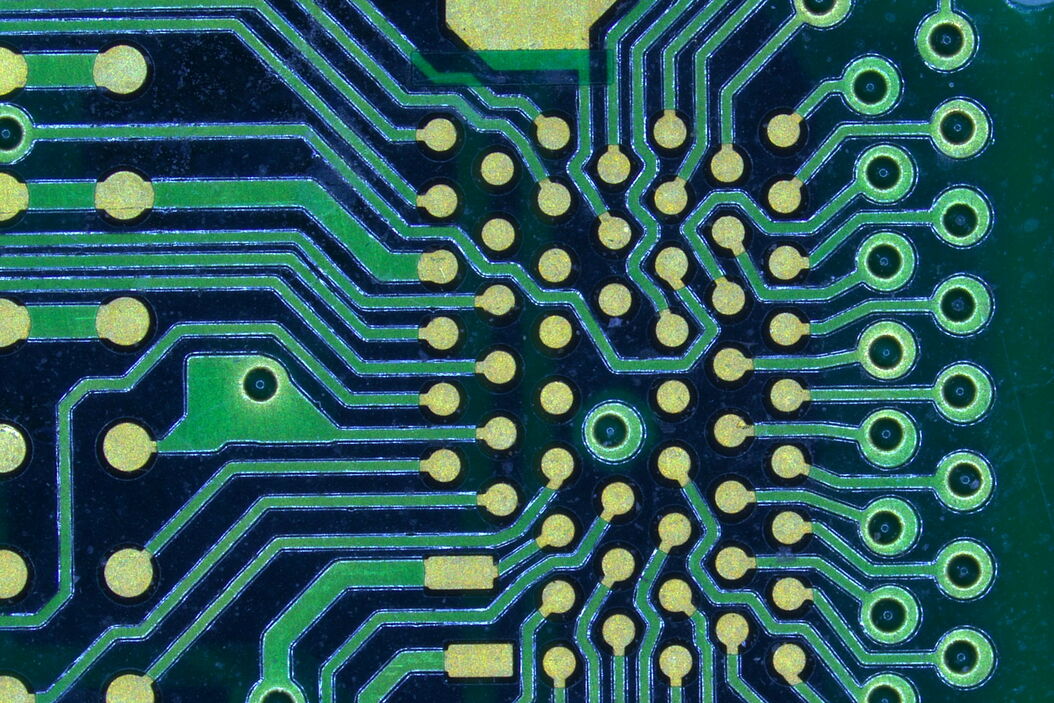
This is actually when you connect and start Emspira 3: On the screen will appear the Leica logo and its name. The next thing you will see is your life image. This is actually a video that I'm going to start now, that I've recorded, which shows you the zoom range of Emspira 3. With the 8:1 zoom, zooming in and out on that electronic part that I'm using now for the rest of the presentation, to show you all the possibilities that you have with Emspira 3.
12:05
The first thing that you have to do when you start Emspira 3, is to go into the settings menu.Here in the settings you see, it opens with English. But if you click on language, you can choose out of many languages including German, French, Italian, Spanish, Portuguese and, I guess, Japanese, Korean and Chinese.
The next thing you do to make Empira 3 operational, is – out of this list of objective numbers here - you choose the objective that you're actually using. Then the calibration data for this objective will be used for further use inside Empira 3.
13:17
The next thing is, you can use here in the settings menu different ways of making symbols and logos disappear. That is to customize your interface furthermore. You have up here the functionality of, for example, how you want to acquire an image. You can acquire an image by pressing the middle mouse button. You can also say “Start recording” on middle mouse button, you can define your white balance there or comparison. You can also use a foot switch which is directly connected for acquiring images or giving it also other functions. And you can also say with what you want to have an automatic image copy.
14:29
The next thing from the settings, after being in general, we go to the gallery. In the gallery you can define your image name, your time format, and if you want to acquire an image with or without overlay.
We go into network settings and you see there is nothing appearing on that particular image here. That is simply because when I took these pictures I was not connected to a network. Network connection can be done with a WiFi dongle or with a line cable and that looks like this. Here you can say for example, this is the user email that I want to send. Here you can also say where you want to share it and where you want to store your images. That is why I mentioned before when storing images on a network device, please inform your IT and have it involved in the installation.
Konstantin: As I see it's possible to share the images via WiFi and network and then either send it by email and as well to place it on the file server, right?
Michael: Absolutely correct! That's the idea behind it! Great, so again that means there is no PC directly involved when you take the pictures. But you can share that on the network drive or send it directly per email.
16:42
Next thing that we come to is the settings for the camera. Here we have typical camera settings available, plus some more that we didn't have before. Your first choice when you are in the camera setting: you can choose the image format that you want to store the images with.
I forgot one thing in the not network setting: the images are actually saved on a USB drive which is connected directly into Emspira, what is also connected to make all these manipulations possible. In the standard setup from us, that includes also a wireless mouse and the necessary cables and the power supply for Emspira 3.
17:46
Back to the camera: here in this menu point you decide what format you want to use. Next thing is that once you have done that, the camera has a possibility to switch on and off auto brightness. If you switch off auto brightness you will have two sliders up here for exposure and for an amplification with gain. You adjust your exposure time and you see here for this image the exposure time would have been 4.8 milliseconds - which is very, very short.
The next one we'll show you with 21milliseconds and the image is already overexposed even before we have gain used. The whole point why I show this overexposed picture: all this does not happen, if you switch on the auto button and go to a middle brightness. Then the machine will do everything itself.
19:01
Another thing is that you have “One Push White Balance”. Before you start any inspection or experiment you should do a white balance simply that the colors on your stored images appear correctly. Of course, you can also adjust red, blue and green individually. You can also change gamma values, sharpness values, saturation values, and you can give it a noise reduction.
What is really important is, that the colors that Emspira 3 produces and shows on the screen, should be as close to reality as possible. That sometimes is a bit difficult because many of the screens are having settings that are over saturated. That is why here in the saturation level you see a minus two. That avoids the oversaturation that actually comes from the screen.
What you also have - and which is new - you can switch to gray scale here and you can switch to negative. The negative I have tested. That is pretty useful when you have to compare things and you produce your comparison image either in black and white, as you will see further on, or in negative. If you overlay your comparison image of your masterpiece and you put the seral production underneath and you orient it correctly, with the same magnification of course, then the image will become completely gray.
If they are overlaying perfectly, you also have the possibility to mirror horizontal and vertical which in the standalone version is not really needed, because you will see the image in the correct orientation.
21:34
The next thing we have here, and this is something again that I will show you, is we have also built in a digital zoom. If I change that here I can go up to higher magnification and if you look at the scalebar and the magnification number down here, if I do that again you see that the scale bar and the magnification number are changing. Where you have to be careful with that digital Zoom is, the digital zoom magnifies a part of the image digitally. It does not mean you will get better resolution than with a low magnification.
22:14
Now I'm going to do a similar thing. But except with digital, I'm using the zoom of Emspira 3 itself. You see again, scale bar and magnification numbers are changing. And this is still what Emspira 3 can do on that little electronic part. But of course, on top of that I can add digital zoom which does not give me any more resolution than the original optical image. That was what we have in the camera menu.
23:06
Now we come into the gallery menu. You see here different stored images. You just click on them and open them like that. If you have a video, it's marked here with “vid”.
We also have a gallery of reticules. There are stored reticules that already come with Emspira, like these crosshairs here, or center cross, or our logo. But of course, you can also create your own overlays according to your needs.
23:48
The next menu button we are going to use is “Measure”. If you click on “Measure automatically”, this user interface appears. In “Measure” you have different options. One option, which is very important, if you want to control if the measurements are correct, is to check if the user calibration is correct or not. This is very easy. You put an object micrometer underneath, adjust the line and then check if the number of pixels responds to the distance that you've just shown or try to measure. Then you can say “Reset” and give in the number yourself.
Furthermore you have the option of line creation. That's a simple line. You can create arrows and then you can of course use the selected item and make it disappear.
Then you have here the line measurement option when you right click on your mouse. when you have activated the line measurement or any of the other measurements that I'm going to show you, you get actually a digital magnifying glass that shows you how good or how bad you are in positioning. Here I put the next position on the other side and then you see here that my measurement line is not straight. I can correct that and straighten it up and then I get automatically the distance.
Furthermore, I can measure angles. I can measure circles. And what I get is the circle diameter and the circle surface. I can measure rectangles. Get the same thing: I get the perimeter length and the surface.
And of course, I can do the same thing for surface measurements of irregular shapes.
26:17
Here I'm just doing parallel lines with the line function, and I can move them as soon as I see that white square. I can move the lines laterally or vertically. Does not really matter in the measurement.
26:36
I have also this snowflake symbol here. If you use that you will get an image freeze which is not supported for the 12-megapixel image. But for all other resolutions that you have chosen, you can acquire by clicking on the camera symbol the image with an overlay. That would be then the acquired image. If you go on that disk symbol you store the overlay.
27:25
Of course you can change the properties of the overlays. You can give different colors, you can give different opacities, and you can change font size and different fonts, and line width, for example. Here I've changed the line to blue, and I have no background here. After changing that I can say here “Acquire image with Overlay”.
28:02
Now we come to the reticules. I've created here with our parallel lines, that we've seen before, an overlay which appears then not on the camera, but it's stored on the connected USB stick.
28:21
Now we come to the compare function. The compare function allows me to check here in the gallery an image, that I want to compare my life sample under the microscope with. If you want to toggle between the comparisons, you have here the image how it looks when you have an overlay. I'm using the grayscale image so that you better see the difference between the comparison image and the life image for positioning. If you have tasks like that, what I very strongly recommend to you, is to use a gliding stage. With a gliding stage you can much better adjust and much finer adjust the overlay level and quality. This is how it would look if I put my color image on top of the grayscale image. The overlay is pretty good. I can also, by just toggling on the image, switch to my comparison image on the left, my live image on the right and vice versa and go back to the overlay. That was a short overview over the features of Emspira in the standalone mode and I hope that you have now lots and lots of questions to us!
Konstantin: Thank you very much, Michael!
Related Articles
-
Ensuring Glass Quality with the Polarization Microscopy Advantage
Glass is one of the oldest materials known. Today, it is used for many applications, e.g., optical…
Mar 23, 2026Read article -
Visualizing Photoresist Residue and Organic Contamination on Wafers
As the scale of integrated circuits (ICs) on semiconductors passes below 10 nm, efficient detection…
Mar 02, 2026Read article -
Safe Wafer Loading for Microscope Inspection without Hand Contact
How automated silicon wafer loading for microscope inspection helps improve microelectronics process…
Feb 19, 2026Read article


